My Gift to You: A Free Excel & PPT Add-In :)
I looooove Macabacus & FactSet's shortcuts and my job pays for them
but I don't have them on my personal device. So I built out my favorite
tools for personal use. Ended up sharing them with some friends who
found them useful, so decided I'd set up this website to make it easy
for anyone who wants to use them to use them. Hope you enjoy!
I've also added some shortcuts that neither Macabacus nor FactSet have
(indirect tracer, etc.), so if this makes your life at work easier,
please use it.
The tools aren't quite as comprehensive as their paid counterparts,
but I've added in most of what I view as critical functionality. They
all work on my device and should work on yours, but if you ever find
something weird, please let me know and I'll do my best to fix it (when
I get a minute haha).
Super Easy Install (takes ~1 minute)
Install is pretty easy and consists of downloading a zip file, un-zipping it, and clicking on a file named Install GUToolkit. Expand the four steps below if you want more detailed instructions.
Show me the steps :) I've figured it out - you can hide the steps :)
-
Unzip the downloaded file
Download
GUToolkit.zipand extract it somewhere normal, like Documents. You can't run the installer from inside the zip preview window.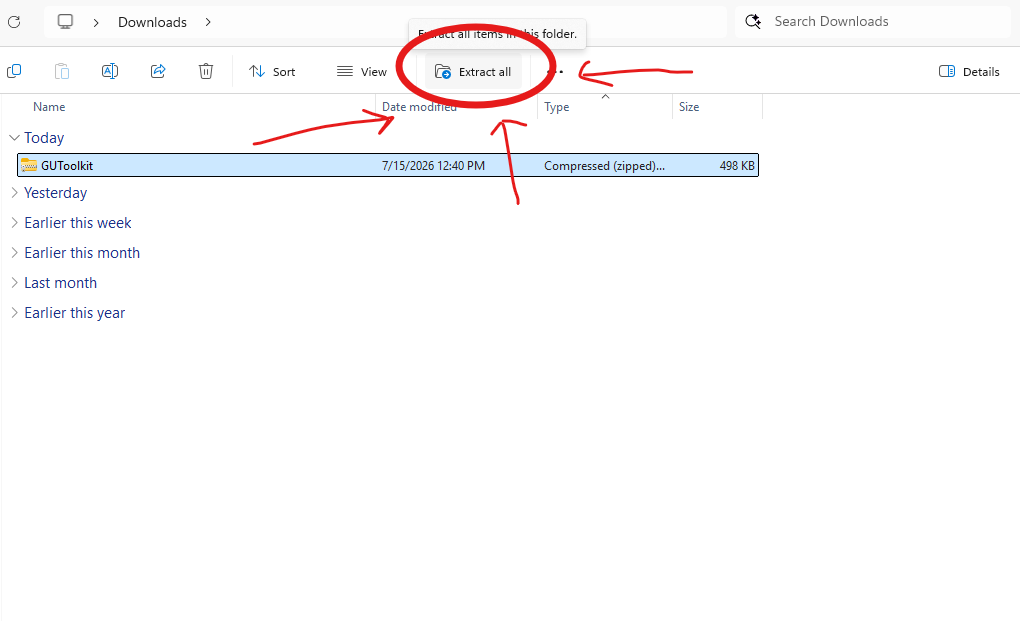
images/install-step-1.png -
Close Excel and PowerPoint
Both apps need to be closed to install this (if they appear closed but you're getting issues, check task manager).
-
Run “Install GUToolkit”
Double-click it. A command window will open up - don't click out until it says the install finished.
Because you downloaded this from the internet and it isn't a standard filetype, your computer will likely be wary about running it and give a warning. Just choose More info → Run anyway.
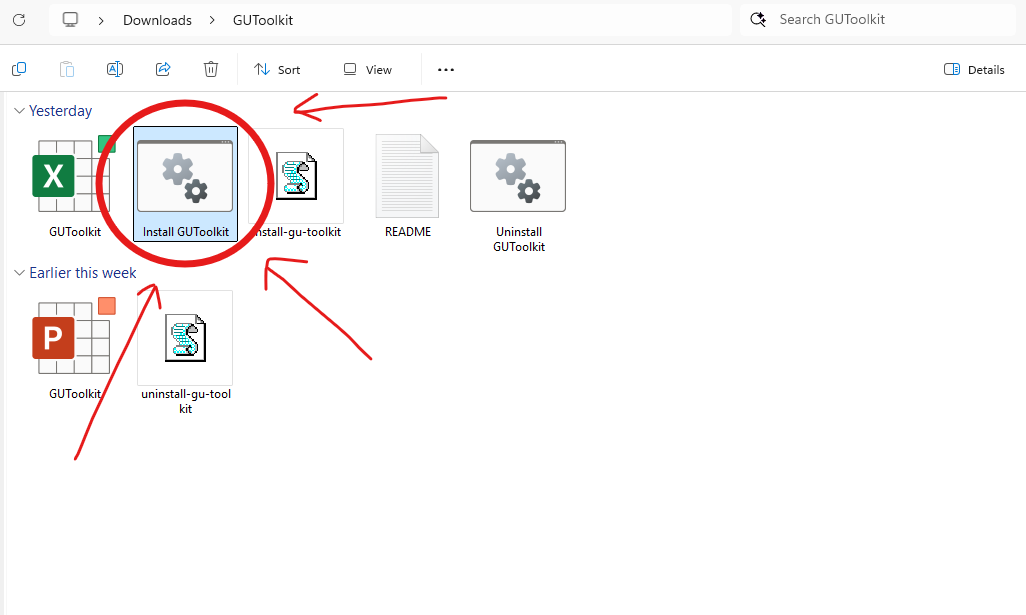
images/install-step-3.png -
Open Excel or PowerPoint
Look along the ribbon for the new GUToolkit tab. If you see it, you are done! If not, try again. If you don't like it, run
Uninstall GUToolkit.batfrom the same folder.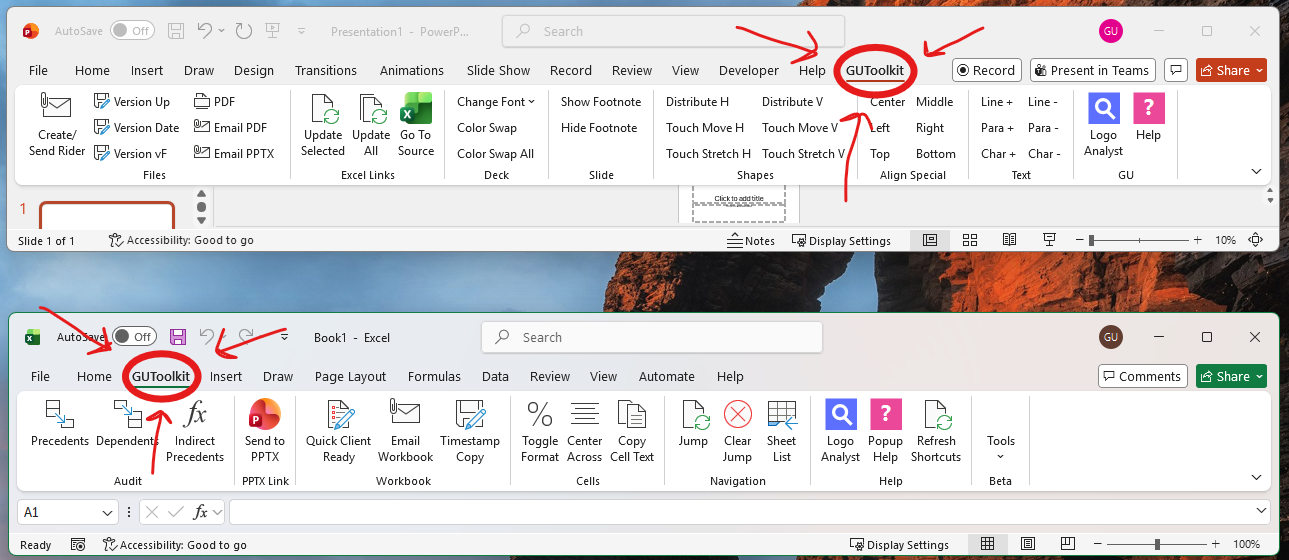
images/install-step-4.png
Summary of the Tools!
Expand to see more details about any individual tool.
In Excel
- Formula audit See exactly what feeds a cell.
-
- Precedents CtrlShift[ / Dependents CtrlShift] — these are MUST-HAVES for me. Work very similarly to FactSet and Macabacus
- Indirect Precedents CtrlShiftI — find where
INDIRECTformulas are pointing to. - Indirect Dependents (beta) CtrlAltShiftR — find cells whose
INDIRECTpoints at this cell (FYI - takes a minute to run).
- Excel → PowerPoint Send cells to a slide as a live picture.
-
- Send to PPTX — paste the selected range onto the active slide as a tagged, full-color picture you can refresh later from PowerPoint.
- Workbook tools Workbook-level macros to save time.
-
- Quick Client Ready CtrlShiftQ — sets every visible sheet to A1 at 100% zoom.
- Email Workbook CtrlShiftO — give you an Outlook draft with the workbook attached.
- Timestamp Copy CtrlShiftA — automatically creates a dated copy making version control easier (will drop in Archive folder if it detects one)
- Cell tools Small formatting time-savers.
-
- Toggle Format CtrlShiftT — cycle a selection through original, percent, multiple, $ whole-number, whole-number (ALL WITH _) SPACING).
- Center Across CtrlShiftM — center across a selection without merging.
- Copy Cell Text CtrlShiftX — auto copies the formula (or text) in the cell - makes it easy to move cell without shifting formula
- Formatting & fill Macabacus-style formatting shortcuts.
-
- Toggle Hardcode Color Ctrl; — flip the selected cells' font between black and blue to flag hardcoded inputs.
- Cycle Font Color Ctrl' — cycle the font through the Macabacus color convention (inputs, links, and so on).
- Auto Color — color the selection automatically by source type: links green, hardcoded values blue, local formulas and text black.
- Wrap in IFERROR CtrlShiftE — wrap the selected formula(s) in
IFERROR(…, "NA"). - Fast Fill Right CtrlShiftR / Fast Fill Down CtrlShiftD — copy the active cell's formula right or down across the selection.
- Banded Rows CtrlAltR — apply alternating row shading with conditional formatting.
- Accounting Underline CtrlShiftU — apply an accounting-style underline to the selection.
- Navigation Bookmark a spot and jump back.
-
- Jump CtrlShiftJ / Clear Jump CtrlShiftZ — save the active cell, then return to it later.
- Sheet List CtrlAltShift. — open Excel's full worksheet list for faster navigation.
- First Sheet CtrlAltHome / Last Sheet CtrlAltEnd — jump to the first or last worksheet.
- Beta tools Newer, experimental helpers.
-
- Formula Flow — highlight formula cells by row / column / grid of their precedents.
- Clear Visuals — remove Formula Flow highlights.
- Delete Sheet? CtrlAltShiftY — check whether anything references a sheet. It NEVER deletes anything - merely checks so you can.
- Extras Handy odds and ends.
-
- Popup Help CtrlShiftP — show the in-add-in cheat sheet of every shortcut.
- Refresh Shortcuts — re-register GUToolkit's keyboard shortcuts if Excel or another add-in has grabbed them.
- Open logoanalyst.com CtrlShiftL — open logoanalyst.com in your browser.
In PowerPoint
- Files & versioning Save, name, and send decks cleanly.
-
- Version Up / Date / vF — save a copy with a bumped number, a date stamp, or a final tag.
- PDF / Email PDF / Email PPTX — export to PDF, or start an email with the deck or PDF attached.
- Create/Send Rider — build and send a rider from the current deck.
- Excel links Keep pasted Excel pictures current.
-
- Update Selected / Update All — refresh one or every linked Excel picture from source.
- Go To Source — jump to and select the Excel range behind a linked picture.
- Deck & slide Fonts, colors, footnotes.
-
- Change Font — set the whole deck to Calibri, Arial, or Times New Roman.
- Color Swap / Swap All — replace one color with another across the deck (All version works in tables as well).
- Show / Hide Footnote — toggle the slide footnote.
- Shapes & align Precise placement in a click.
-
- Distribute H / V — even spacing horizontally or vertically (uses master slide to figure out spacing).
- Touch Move H / V / Touch Stretch H / V — nudge shapes edge-to-edge or stretch them to touch, horizontally or vertically.
- Align Special — center, left, right, top, middle, bottom against the first selected shape.
- Shape tools Copy one shape's look onto others.
-
- Copy Shape — grab the selected shape's formatting, size, position, and rotation for the session.
- Paste All — apply everything you copied to every selected shape at once.
- Paste Special — apply just one attribute: size, size & location, width, height, fill color, border color, border weight, top, left, location, location center, or rotation.
- Swap Shapes — swap the positions of exactly two selected shapes without touching their size or formatting.
- Text spacing Make that text fit (for your MD ;)
-
- Line +/−, Para +/−, Char +/− — adjust line, paragraph, and character spacing in small steps.
This was built for Windows (and does not work on Mac - sorry!). Please let me know of any good feature ideas or bugs to fix!